How to Install iOS App via TestFlight
TestFlight lets developers share beta apps with users for testing.
Getting started
To test beta versions of apps using TestFlight, you’ll need to accept an email invitation from the developer and have a device that you can use to test.
Requirements
- iPhone or iPad running iOS 14 or iPadOS 14 or later
- an email used as an Apple ID
Important
To avoid confusion, please make sure the email you use as your Apple ID is only associated with one person and one Apple device.
Installation Guide
Step 1: Install TestFlight App
Download the TestFlight app from the App Store by searching for “TestFlight” or tap the direct link in your mobile device: https://apps.apple.com/us/app/testflight/id899247664
Once installed, open TestFlight and just follow the Welcome dialog by tapping “Continue”.
Step 2: Accepting “Development Team” Invitation
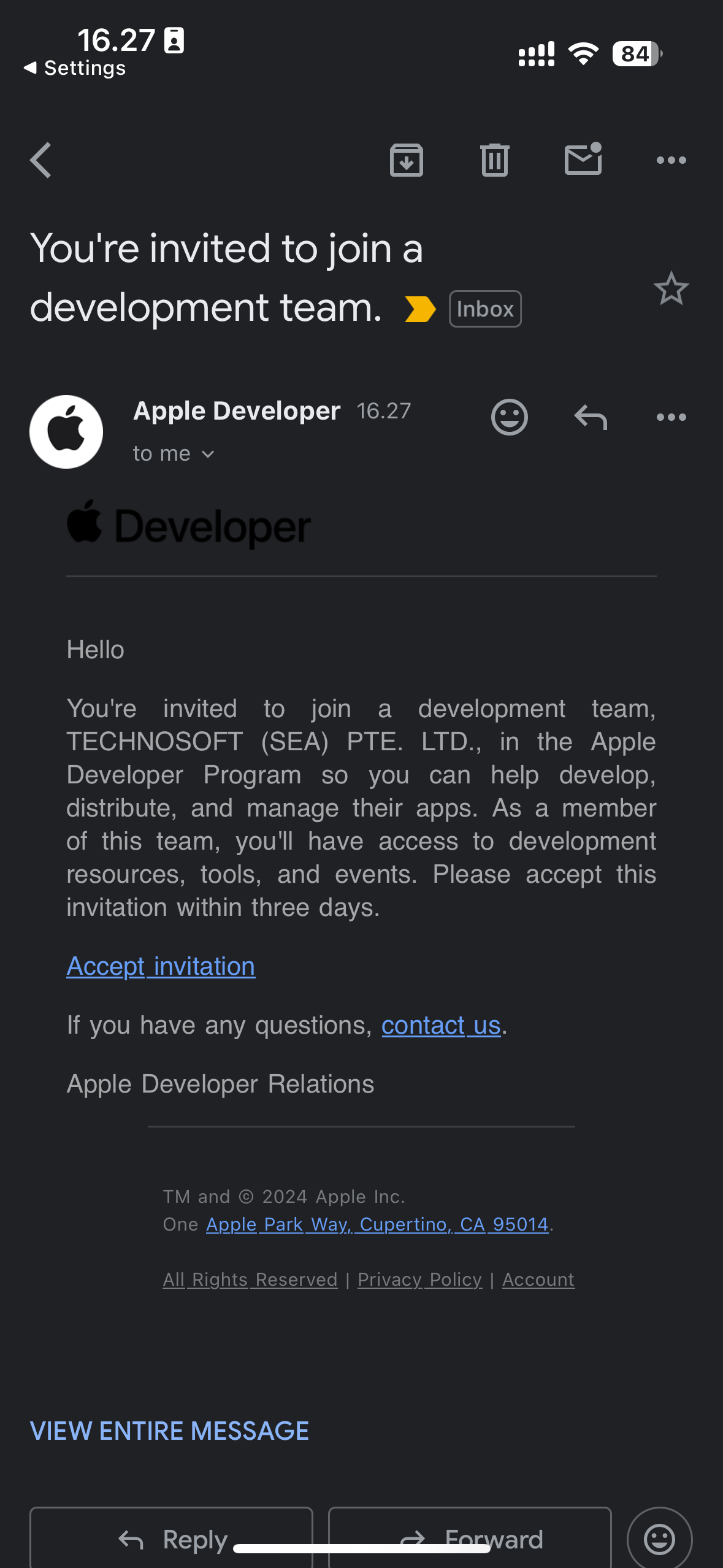
Accept the invitation by tapping the "Accept Invitation" link in your email.
Example
Step 3: Accepting “App” Invitation
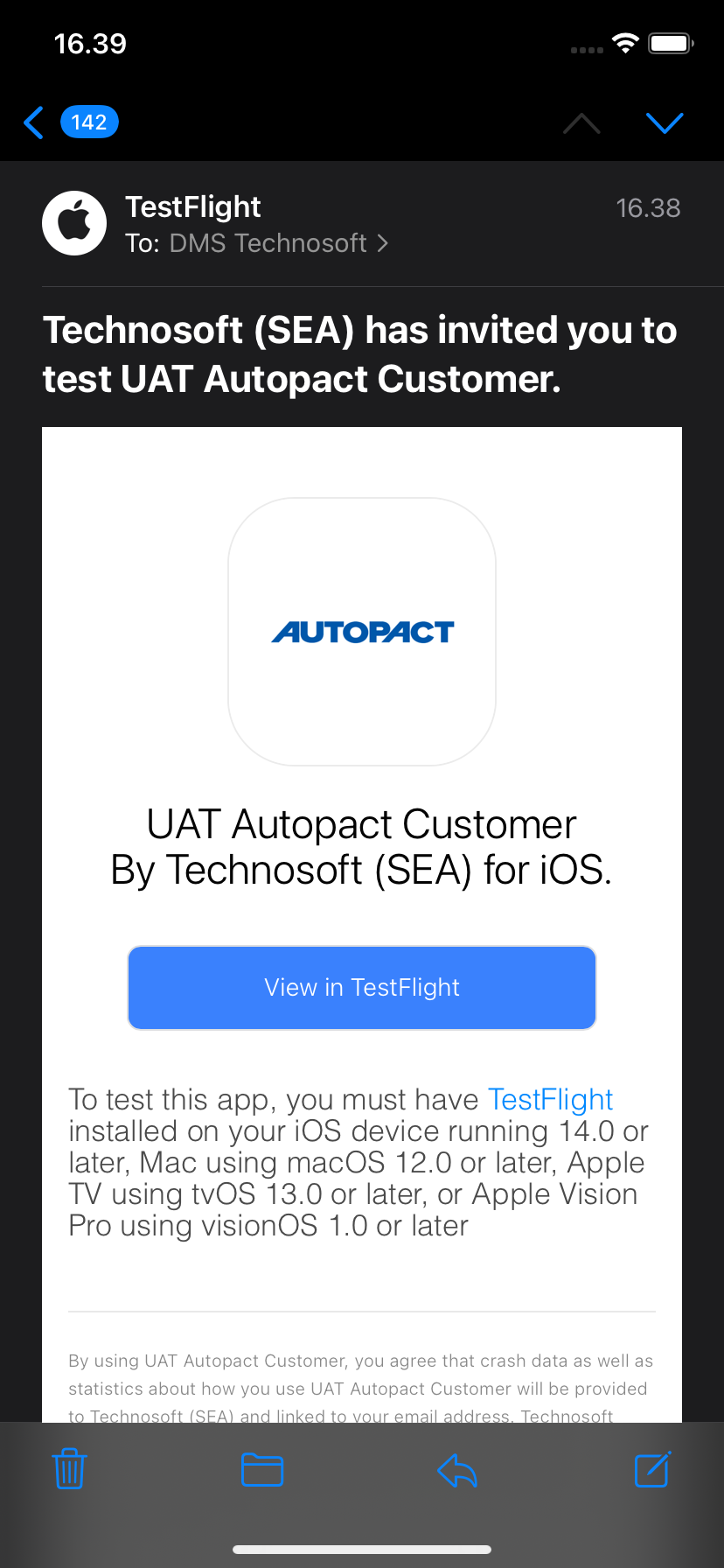
- Accept the invitation by tapping the "View in TestFlight" link in your email.
- Follow the prompts in TestFlight by tapping "Accept" and then "Install".
- Wait for the app to install, and then tap "Open".
Example